Technology for Elderly Parents: A Practical Guide
Video calls, medication reminders, and staying connected don't have to be complicated. Here's how to set up technology that actually works for seniors.
Technology should make your parent's life easier, not harder. Success isn't about teaching them to use a smartphone like you do, it's finding the right device for what they actually need: seeing grandchildren, calling for help, remembering medications. Start with their needs, not the technology.
Choosing the Right Device
For Video Calling (Most Popular Need)
GrandPad ($250 + $40-50/month)
Best for: Seniors who struggle with any technology
Purpose-built tablet for seniors with extremely simple interface. Large buttons for photos, video calls, and music. Family members manage settings remotely. No confusing menus or updates.
✓ Simplest option available, no training needed
✗ Expensive ongoing subscription, limited functionality
Amazon Echo Show 10 or 15 ($250-280)
Best for: Hands-free video calling, voice commands
"Alexa, call Sarah" makes calling effortless. Large screen, voice-activated. Also great for music, reminders, news, and smart home control. Drop-in feature lets family check in.
✓ Voice-activated (no buttons to remember), no subscription
✗ Requires setup, works best with Amazon ecosystem
iPad with Simplified Interface ($350-800)
Best for: Seniors who want more functionality
Use Accessibility features to simplify. Larger text, Guided Access to lock to one app, AssistiveTouch. FaceTime works well for Apple families.
✓ Versatile, high quality, family likely already uses
✗ Requires more setup and training
Facebook Portal ($150-350)
Best for: Families using Facebook/WhatsApp/Messenger
Easy video calling to anyone with Facebook or WhatsApp. "Hey Portal" voice commands. Smart camera follows movement.
✓ Simple setup if family uses Facebook, no subscription
✗ Privacy concerns, requires Facebook account
For Phone Calls (Simple Phone Replacement)
Jitterbug Smart3 ($100 + plan)
Best for: Seniors who need a simple smartphone
Large icons, simple menu, 5Star emergency response button. Lively (formerly GreatCall) plans include health and safety features.
✓ Designed specifically for seniors, emergency response
✗ Monthly plan required, limited features
Simple Flip Phones
Best for: Seniors who only want to make calls
Basic phones from carriers or TracFone. Physical buttons, familiar form factor. Just calls and texts.
✓ Familiar, cheap, long battery, no complexity
✗ No video calling, no apps
The equipment that changes the most
Most of what caregiving costs is time. These four are the purchases that reliably buy some of it back, and they are the ones families tell us they wish they had bought sooner.
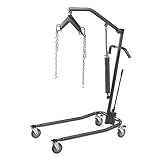 Drive Medical Hydraulic Patient Lift
A full lift is what makes one person able to manage a transfer alone. It is the single purchase that most often delays a move into residential care.
Check price on Amazon →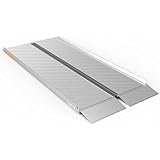 EZ-ACCESS Singlefold Wheelchair Ramp, 6 ft
Folds like a suitcase and carries in a car boot, so the same ramp handles the front step at home and the kerb at an appointment.
Check price on Amazon → Drive Medical Nitro Rollator with Seat
The seat matters more than the wheels. Being able to stop and rest is what decides whether someone still goes out at all.
Check price on Amazon → Vive Stand Assist Rail for Couch or Chair
Getting out of a low sofa is where most falls at home start. This is the cheapest thing on the list and often the first one needed.
Check price on Amazon →As an Amazon Associate we earn from qualifying purchases, at no extra cost to you. Researched guidance, not medical advice. Prices change, so check before buying.
Setting Up for Success
Do the Setup Yourself
Complete all accounts, passwords, and configuration before handing over the device. Log in, connect WiFi, install apps, and test everything.
Remove Everything They Don't Need
Hide or delete unused apps. The fewer options, the less confusion. For iPad, use Guided Access or Screen Time to restrict to specific apps.
Make Text and Icons Bigger
Max out accessibility settings: largest text, bold text, increase contrast. Set up any vision or hearing accommodations.
Create a Simple Written Guide
Screenshot each step of common tasks. "To call Sarah: Tap this button. Tap Sarah's picture. Tap the green button." Laminate if possible.
Practice Together Multiple Times
Walk through the same actions repeatedly over several visits. Muscle memory matters more than understanding.
Set Up Remote Access
Enable screen sharing or remote access so you can help troubleshoot from a distance. TeamViewer, Apple Screen Sharing, or device-specific options.
Common Challenges & Solutions
"They Keep Tapping the Wrong Things"
Turn on a phone case with raised edges around the screen. Increase touch sensitivity. Consider a stylus if finger accuracy is the issue. Simplify the home screen to just 2-4 icons.
"They Forget How to Do It Between Calls"
Schedule regular practice calls, daily at first. Consider auto-answer devices like Echo Show with Drop In. Keep the written guide right next to the device.
"They Accidentally Change Settings"
Use parental controls or Guided Access to lock them into specific apps. Disable settings access. Set up automatic updates so you don't need to guide them through it.
"They're Afraid of Breaking It"
Reassure them nothing they tap can actually break anything. Remove anxiety by saying "If anything goes wrong, we'll just fix it together on our next call." Get a protective case.
"They Keep Getting Scam Calls/Texts"
Enable call blocking features. Only allow calls from contacts. Teach them to ignore anything suspicious. Consider robocall blocking apps or services.
Medication Reminders
Technology can help with medication adherence:
Simple: Phone Alarms
Set recurring alarms labeled "Take morning pills." Free, but requires them to acknowledge and remember what to do.
Voice: Smart Speakers
"Alexa, remind me to take my pills at 9am and 9pm." Can also ask "What medications am I taking?" if you set up a routine.
Visual: Pill Dispensers
Automatic dispensers like Hero or MedMinder dispense pills and alert if missed. More expensive ($30-60/month) but foolproof.
Manual: Pill Organizers
Sometimes the old-fashioned weekly pill box is best. You or a caregiver fills it. Clear visual of whether pills were taken.
Safety and Monitoring Technology
Medical Alert Systems
Wearable devices with emergency buttons. See our full guide: Medical Alert Systems for Elderly Parents
Motion Sensors and Cameras
- Motion sensors: Alert you if no movement detected (for falls, illness)
- Smart cameras: Check in visually (with permission)
- Smart plugs: Monitor if coffee maker, TV used (signs of normal routine)
- Door sensors: Know when they leave/return home
Always get consent before monitoring. Some parents appreciate the safety; others feel surveilled. Have an honest conversation about what you're concerned about and why monitoring helps. Consider letting them see the same feeds you do.
GPS Tracking for Wandering
For parents with dementia who may wander:
- Apple AirTags or Tile: Attach to keychain, wallet, or shoe
- GPS watches: AngelSense, Medical Guardian
- Shoe GPS: GPS Sol, GPS SmartSole (hidden in shoe)
Making Video Calls Work
- Good lighting: Face a window or lamp; avoid backlit situations
- Device at eye level: Prop up tablet so they're not looking down (and you're not looking up their nose)
- Headphones with mic: Reduces echo, improves hearing
- Scheduled call times: Same time helps them remember and prepare
- Keep calls short: 15-20 minutes is often enough; quality over quantity
- Have backup plan: Regular phone call if video doesn't work
For Parents with Cognitive Decline
Technology gets harder as dementia progresses. Adjust expectations:
- Early stage: May still learn new technology with patience and repetition
- Middle stage: Simplify to one or two functions; voice-activated is often best
- Late stage: They may not be able to initiate calls; use Drop In features or photo frames that display pictures automatically
Digital photo frames that family can update remotely (like Skylight or Aura) are wonderful for all stages, they just see photos appear, no action required.
When Technology Isn't Working
Sometimes technology creates more frustration than connection. Signs to reconsider:
- Every call starts with 10 minutes of troubleshooting
- They're anxious about the device
- They avoid using it entirely
- Frustration outweighs benefit
It's okay to go back to regular phone calls, letters, or more frequent in-person visits. The goal is connection, and technology is just one path.
Keep All Care Info Organized
Our Care Coordination Binder helps track technology setup, passwords, and provider info in one place.
View Resources